
The Fire TV Stick works with IPTV by installing a compatible application that connects to your IPTV provider’s servers via the internet, allowing you to stream live channels and on-demand content directly to your television . It is a simple and affordable solution to transform your classic TV into a fully-fledged multimedia platform, without wired installation or complex settings.
By combining an IPTV abonnement from a reliable provider with a Fire TV Stick, you gain access to thousands of channels on the screen of your choice. In this guide, you will discover step-by-step how to install everything correctly, plus practical tips to optimally configure your viewing experience.
Step 1: Connecting and configuring the Fire TV Stick
Connect the Fire TV Stick to a free HDMI port on your television.
Connect the USB power cable to a power outlet using the included adapter.
Turn on your television and select the correct HDMI source using the remote control.
Insert the batteries into the Fire TV Stick remote control.
Follow the on-screen instructions to log in with your Amazon account.
Connect to your Wi-Fi network by entering your password.
Update the device to the latest firmware if prompted.
Wait until the main screen has fully loaded before continuing.
Step 2: Activate installation from unknown sources
Open the ” Settings ” menu on the main screen of the Fire TV Stick.
Go to the ” My Fire TV ” or ” Device and software ” option.
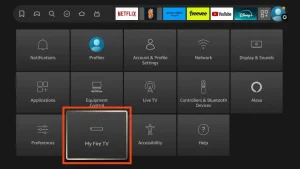
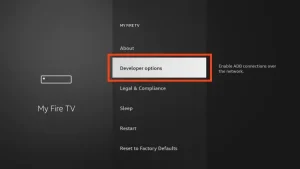
Select ” Developer options ” to open the advanced settings.
Activate the option ” Install apps from unknown sources “.
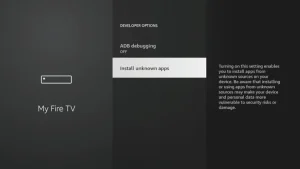
Confirm the message that appears on the screen by selecting ” Allow “.
Return to the main screen to continue.
This step is necessary because IPTV apps are not always available in the standard app store.
The change remains active until you manually disable it.
Step 3: Install the Downloader app and download an IPTV application
Open the search bar from the main screen of the Fire TV Stick.
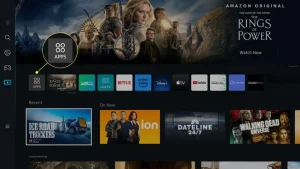
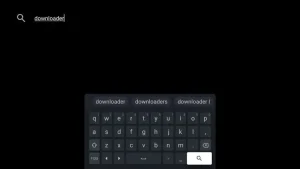
Type ” Downloader ” and select the official app from the search results.
Click on ” Download ” and wait until the installation is complete.
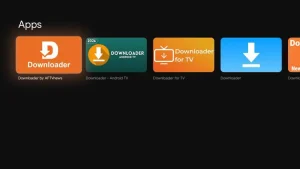
Open the Downloader app and click on the URL field.
Enter the official download address of an IPTV application such as IPTV Smarters or TiviMate.
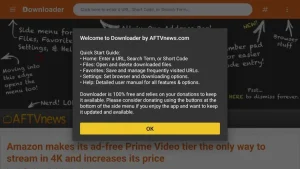
Confirm the download and wait until the file has fully downloaded.
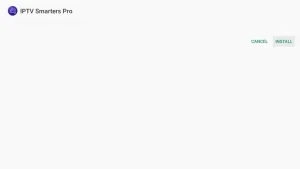
Click on ” Install ” when the prompt appears.
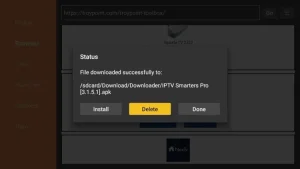
After installation, you can delete the APK file to free up storage space.
Step 4: Connect your IPTV subscription to the application
Open the newly installed IPTV application via the Fire TV Stick menu.
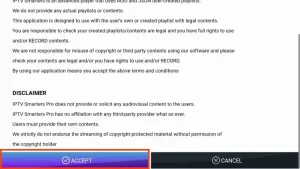
Accept the general terms and conditions and grant the requested consents.
Select the connection method: M3U-link or Xtream Codes (username/password).
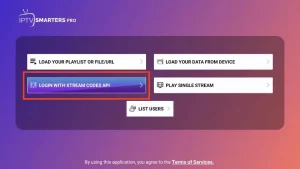
Enter the login details you received from your IPTV provider.
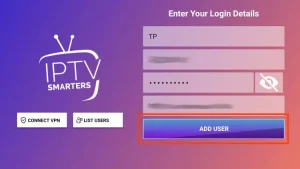
Give the configuration a recognizable name so that you can manage multiple accounts.
Wait a few seconds for the full channel guide to load.
Confirm that the Electronic Program Guide (EPG) is active.
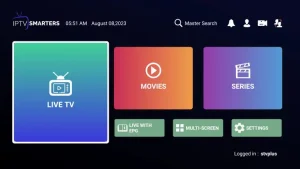
Save the configuration to reconnect every time.
Step 5: Optimize the channels and configure favorites
- Browse the channel list to get to know its organization.
- Mark your favorite channels by pressing the heart or star icon.
- Create categories to organize your channels by theme (sports, news, children).
- Adjust the image quality based on your internet connection (HD or 4K).
- Test different channels to verify stream stability.
- Enable automatic startup on your favorite channel if desired.
- Activate hardware decoding for smoother playback.
- Save your settings so you don’t have to reconfigure them for every session.
Which Fire TV Stick model is best for IPTV?
Niet alle Fire TV Stick-modellen bieden dezelfde prestaties met IPTV, en de keuze hangt af van uw internetverbinding en gewenste beeldkwaliteit. Hier is een vergelijkend overzicht om u te helpen kiezen:
| Model | Resolutie | RAM | Ideaal voor |
| Fire TV Stick Lite | Full HD | 1 GB | Basisgebruik, één scherm |
| Fire TV Stick | Full HD | 1 GB | Standaardgebruik HD |
| Fire TV Stick 4K | 4K Ultra HD | 1.5 GB | 4K-streaming |
| Fire TV Stick 4K Max | 4K Ultra HD | 2 GB | Maximale prestaties |
Voor een soepele IPTV-ervaring, vooral in 4K, wordt sterk aanbevolen om minstens de Fire TV Stick 4K of 4K Max te kiezen. De grotere RAM verbetert het laden van kanalen en EPG-gegevens, vooral wanneer de catalogus duizenden inhoud bevat.
Hoe sous-titles instellen op uw Fire TV Stick?
Het instellen van ondertitels op uw Fire TV Stick verbetert aanzienlijk uw kijkervaring, vooral voor anderstalige inhoud of inhoud in een vreemde taal. Tijdens het afspelen van een kanaal of film, druk op de optieknop van uw afstandsbediening om het instellingenmenu te openen.
Selecteer vervolgens “Ondertitels” of “Subtitles” en kies de gewenste taal uit de beschikbare opties. U kunt ook de grootte, kleur en stijl van de ondertitels aanpassen via het algemene toegankelijkheidsmenu van de Fire TV Stick.
Sommige IPTV-applicaties slaan uw voorkeuren automatisch op zodat u ze niet bij elk kanaal opnieuw hoeft in te stellen. Als ondertitels niet beschikbaar zijn voor een specifieke uitzending, betekent dit dat ze niet door de aanbieder zijn aangeleverd voor die inhoud.
Hoe wijzigt u de audiotrack tijdens het kijken?
Het wijzigen van de audiotrack op uw Fire TV Stick is bijzonder nuttig voor het bekijken van films of internationale series in hun originele taal. Open tijdens het afspelen het opties- of instellingenmenu via de speciale knop op uw afstandsbediening.
Zoek de optie “Audio” of “Talen” en selecteer de gewenste taal uit de beschikbare opties (Nederlands, Engels, Frans, enz.). Als de gewenste taal niet beschikbaar is, betekent dit dat het kanaal of de inhoud die audiotrack niet aanbiedt.
Bepaalde geavanceerde IPTV-applicaties slaan uw taalvoorkeur automatisch op, zodat u deze niet bij elke nieuwe sessie hoeft in te stellen. Voor families met meerdere talen is deze functie bijzonder waardevol om iedereen tegemoet te komen zonder steeds aan te passen.
Ouderlijk toezicht instellen op de Fire TV Stick
Het instellen van ouderlijk toezicht op uw Fire TV Stick beschermt jonge kinderen tegen ongeschikte inhoud en biedt extra gemoedsrust voor de hele familie. Ga naar “Instellingen”, vervolgens naar “Voorkeuren” en kies “Ouderlijk toezicht”. Activeer de functie en stel een unieke PIN-code in van vier of vijf cijfers.
Deze code wordt gevraagd bij elke poging om bepaalde aankopen te doen of beveiligde inhoud te openen. Sommige IPTV-applicaties bieden hun eigen aanvullende ouderlijk toezicht, met de mogelijkheid om volwasseninhoud te verbergen of toegang tot specifieke kanalen te beperken. Combineer beide niveaus voor maximale bescherming.
Bewaar uw PIN-code op een veilige plek en deel deze niet met de kinderen om de effectiviteit van de bescherming te behouden.
Veelvoorkomende problemen oplossen met IPTV op Fire TV Stick
Sommige veelvoorkomende problemen kunnen optreden tijdens het gebruik van IPTV op uw Fire TV Stick, maar ze zijn meestal snel op te lossen met de juiste handelingen. Als u stotteringen of pauzes ervaart, controleer dan eerst de stabiliteit van uw wifi-verbinding of probeer rechtstreeks via ethernet (met de geschikte adapter) aan te sluiten.
Voor zwarte schermen of foutmeldingen, probeer de IPTV-applicatie en vervolgens de Fire TV Stick opnieuw op te starten. Toonaangevende Nederlandse tech-media zoals Computer!Totaal publiceren regelmatig gedetailleerde gidsen over de optimalisatie van streamingapparaten en kunnen aanvullende technische tips bieden.
Als de problemen aanhouden, controleer of uw IPTV-applicatie up-to-date is en neem contact op met de klantenservice van uw aanbieder. Voor meer gepersonaliseerde oplossingen kunt u onze gids voor probleemoplossing op het blog raadplegen.
FAQ – Veelgestelde vragen over Fire TV Stick en IPTV
Heb ik een specifieke Fire TV Stick nodig om IPTV te kijken?
Nee, alle Fire TV Stick-modellen werken met IPTV, maar de 4K en 4K Max versies bieden de beste prestaties.
Werkt IPTV op een Fire TV Stick zonder Amazon-account?
Nee, u moet ten minste een Amazon-account aanmaken om de Fire TV Stick te configureren voordat u IPTV gebruikt.
Welke IPTV-applicaties zijn compatibel met de Fire TV Stick?
De populairste applicaties zijn IPTV Smarters Pro, TiviMate, Perfect Player en VLC for Fire.
Heb ik een snelle internetverbinding nodig?
Ja, minimaal 20 Mbps voor Full HD en 50 Mbps voor 4K is sterk aanbevolen voor een soepele ervaring.
Kan ik IPTV op meerdere Fire TV Sticks tegelijk kijken?
Dat hangt af van uw abonnement; veel aanbieders staan 2 tot 3 gelijktijdige verbindingen toe.
Is het gebruik van IPTV op Fire TV Stick legaal?
Ja, op voorwaarde dat u een legale aanbieder kiest die de uitzendrechten van zijn inhoud bezit.
Hoe verwijder ik een IPTV-applicatie als ik die niet meer gebruik?
Ga naar “Instellingen” > “Applicaties” > “Geïnstalleerde apps beheren”, selecteer de app en kies “Verwijderen”.
Conclusie
Combining the Fire TV Stick with an IPTV application is an excellent way to transform your classic TV into a versatile multimedia platform, with access to thousands of channels and on-demand content. By following the five steps in this guide, you can install everything in less than 30 minutes, without requiring advanced technical knowledge. Additional tips on subtitles, audio, and parental controls allow you to fully customize your viewing experience to your needs. Remember to always choose a reliable IPTV provider that offers fast, high-quality servers to get the most out of your new setup. Happy viewing!